
There are 2 ways to connect to the College of Engineering VDI. The preferred method requires the installation of a software client, while the second is easier and uses a standard web browser.
Installing Horizon Client Software (Preferred)
From your laptop, tablet, or smartphone, simply open a web browser and navigate to the URL https://vdi.engr.washington.edu
1. You will see the Omnissa Horizon Screen and the options of installing the Omnissa Horizon Client, or Web Client.
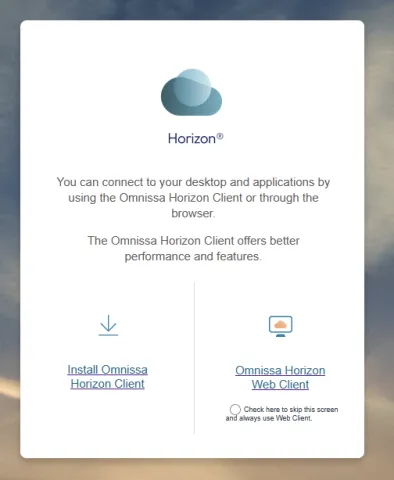
2. Choose “Install Omnissa Horizon Client” from the selection page shown above. You will need to know what your devices Operating System is. At the time of publication, the choices looked like this:
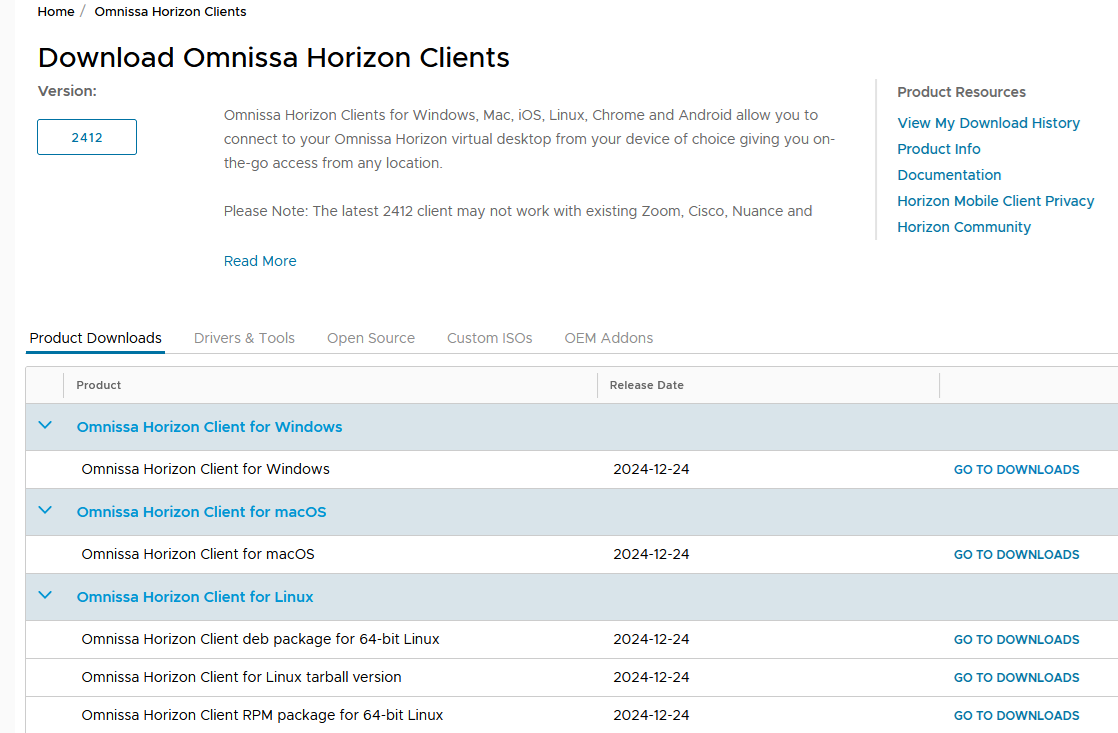
The selections for common devices would be as follows:
Phones/Tablets
- Apple iPhone or iPad – Omnissa Horizon Client for iOS
- Any Android based phone or tablet – Omnissa Horizon Client for Android
Laptops
- Windows based (newer) – Omnissa Horizon Client for Windows – 64-bit
- Mac– Omnissa Horizon Client for Mac
- After identifying the best choice, proceed to the associated ‘Go to Downloads’ page
- Download the file and run.
- Follow the instructions and finish the installation.
- Launch the Omnissa Horizon Client
- In the Horizon client, click 'Add Server', then enter vdi.engr.washington.edu to connect.
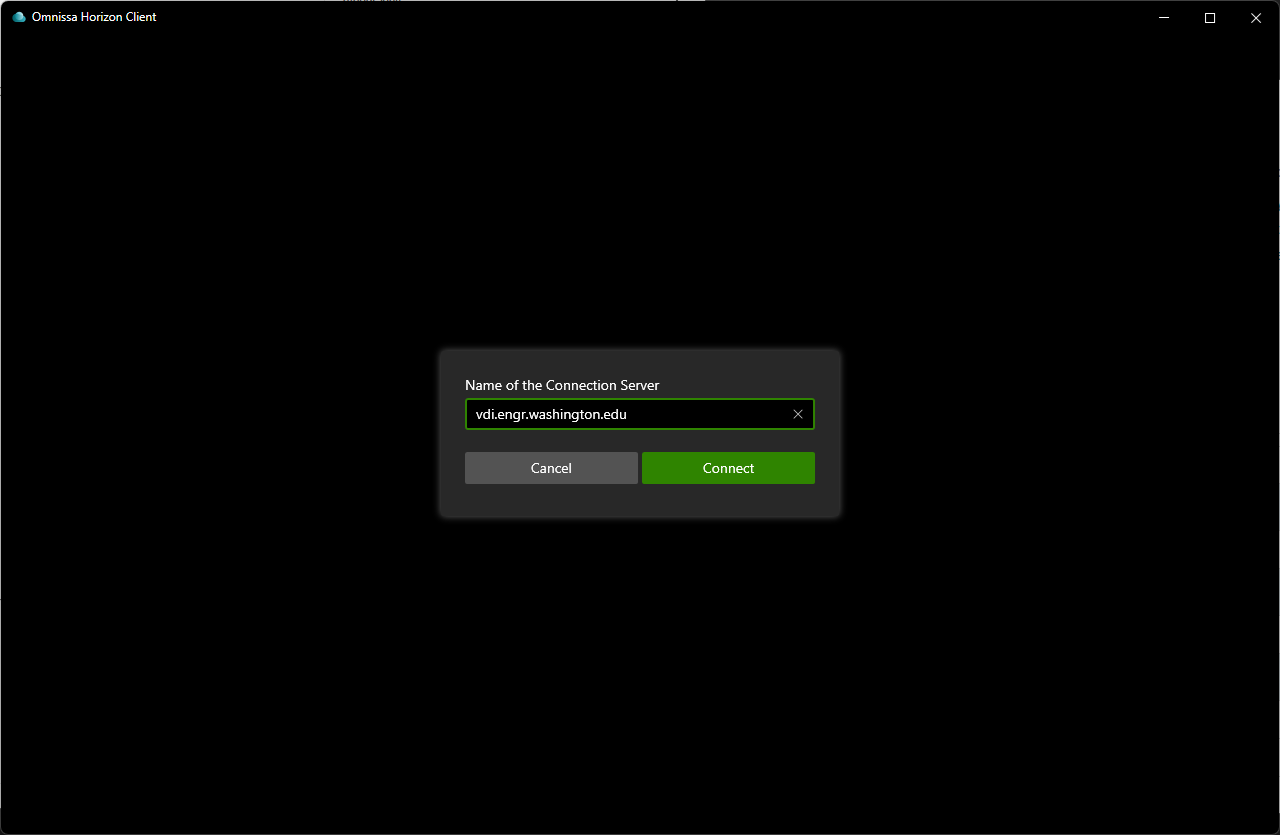
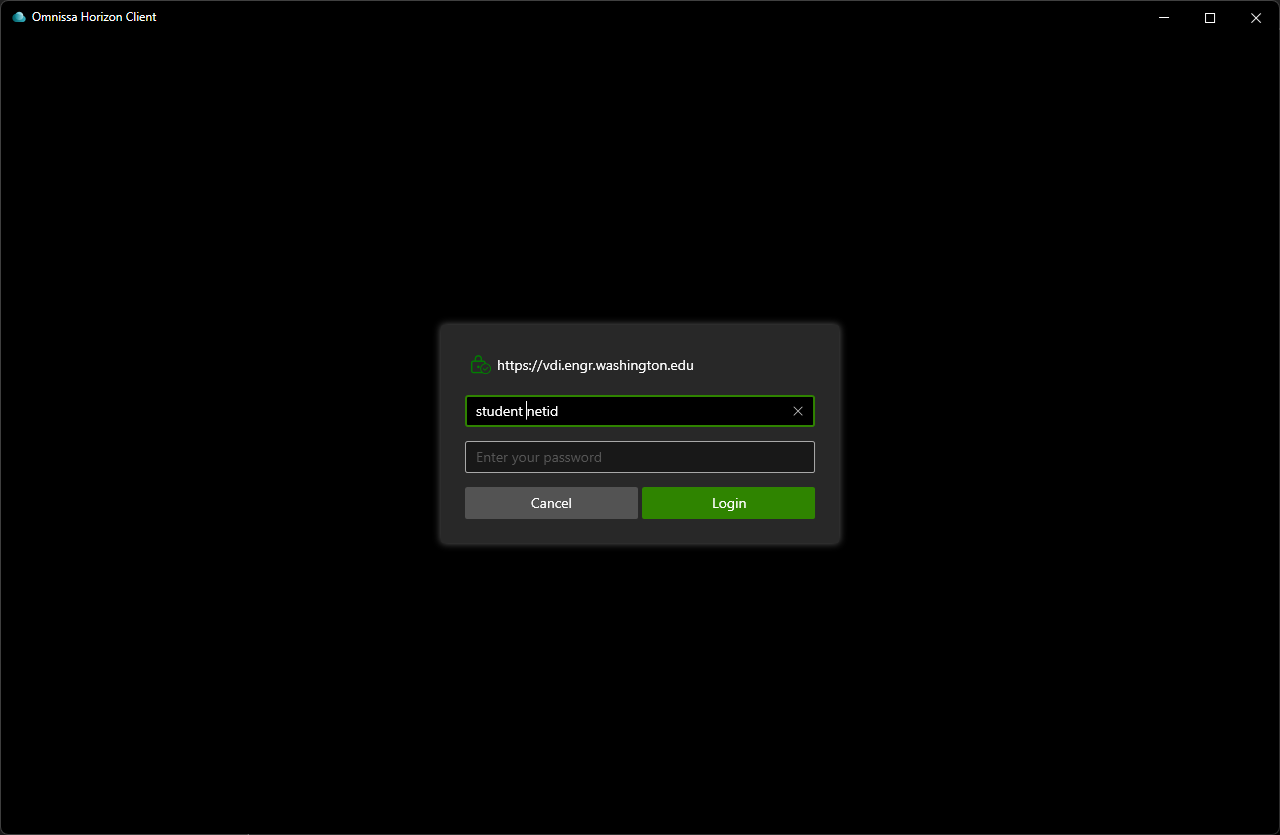
6. You will then be prompted for your UW NetID credentials to connect to a desktop session.
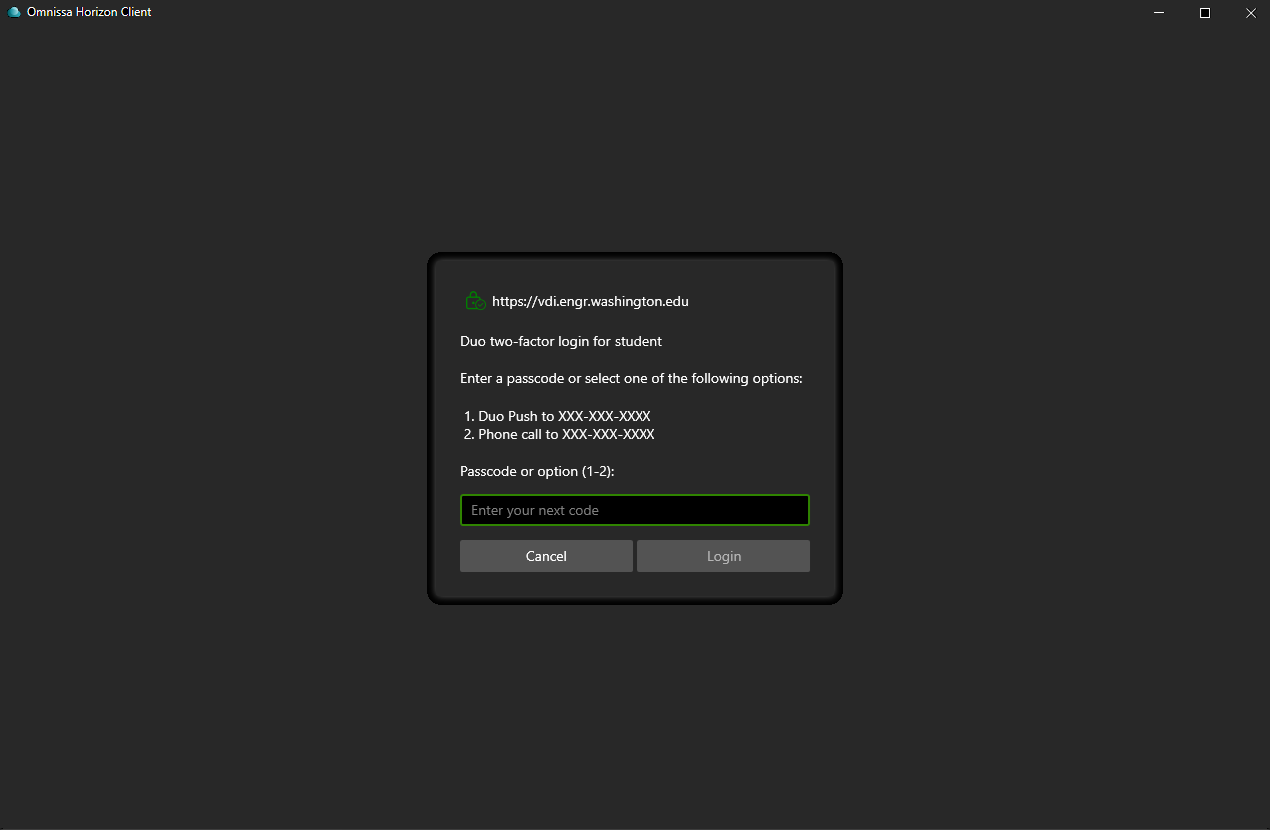
7. After logging in with your NetID you will be asked to use DUO for 2FA. You can either load the app on your phone and type the passcode shown or simply enter 1 or 2 in the field below to do a push notification or to call your phone.
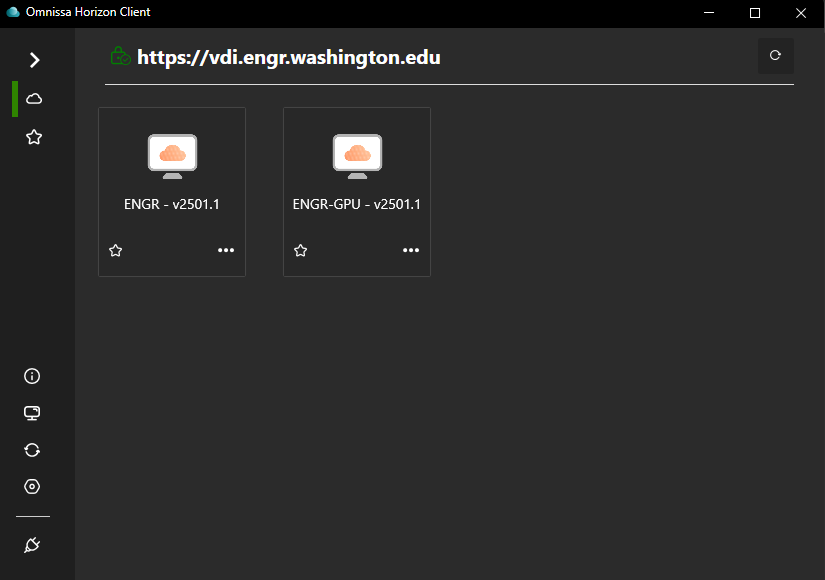
8. Once logged in, you will see a list of your available virtual desktops and applications. Our versioning scheme is YYMM and are typically updated on the second Wednesday of the month.
9. You will then be connected to a standard desktop.
Using HTML access (easiest)
1. From your laptop, tablet, or smartphone, simply open a web browser and navigate to the URL https://vdi.engr.washington.edu
2. You will see the Omnissa Horizon Screen and the options of installing the Omnissa Horizon Client, or simply using the web client to access. In most access scenarios, using HTML access provides excellent functionality without the need to install the Horizon Client.
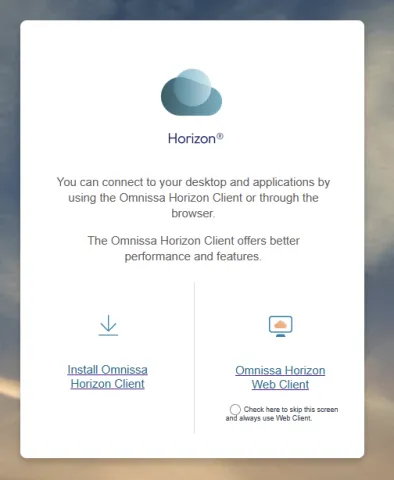
3. After choosing Omnissa Horizon Web Client, you will be prompted for your UW NetID login credentials.
4. You will then be connected to a standard desktop.
Saving Your Work
Remember that all desktop sessions are non-persistent. This means that the Windows environment is refreshed at each login with no data retention from the previous session. Do not save any data on the workstation you wish to retain. All work should be saved to your U: Drive location. For more information about using the U: Drive, see UWIT's U Drive: documentation web page.
Need help?
If you have questions or issues with the VDI system, please contact the College of Engineering help desk.